Obstruction percentage
How much obstruction is too much for Starlink?
Forums say 0%, 2%, 5% or 15%. Starlink says something different, and much shorter. Here’s what it does publish, what a partly blocked sky feels like day to day, and when to wait.
$100First Starlink? The pre-order checklist and our referral linkStarlink doesn’t publish a pass mark for home users. Its business dashboard guide says over 0.2% obstruction hurts performance and over 0.27% causes outages people notice.
That figure comes from an installed dish over time, so you can’t read it off a phone scan before you buy. For a scan, use this rule of thumb (our reading): small blocked patches low near the edge are usually fine; patches that reach high into the sky, or show up on several sides, mean regular short dropouts. How much that matters depends on whether you live on video calls or mostly stream and browse.
What Starlink actually says
Here’s everything Starlink publishes on how much blocked sky is acceptable, word for word:
- the dish does best with open sky and can often get by with part of it.
- “If you see obstruction percentage greater than 0.2%, your install location or current surroundings is having a negative effect on performance. Anything more than 0.27% obstruction will cause enough outages for the end user to notice.” (Enterprise Dashboard guide)
- “Any obstruction level is bad for performance.” (same guide)
- “For well-installed, even partially obstructed terminals, this uptime is typically at the >99.9% level.” (beam-switching update)
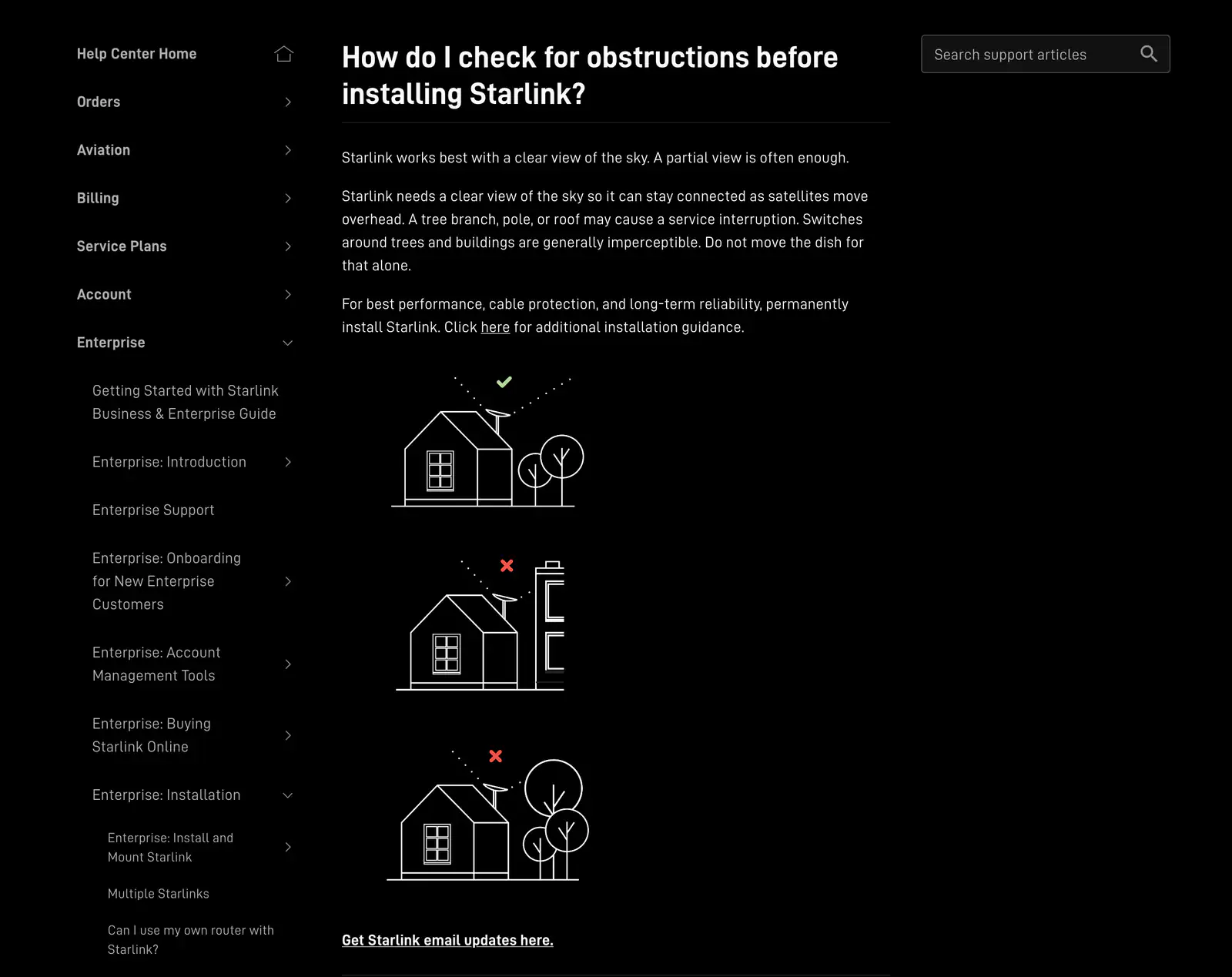
- “Switches around trees and buildings are generally imperceptible. Do not move the dish for that alone.”
Read together, they say: some blocked sky is normal and usually workable, the cost is short outages, and less is always better. Starlink also explains when those outages happen: “Obstructions cause brief service interruptions when all available satellites are obstructed.”
Why you see 2%, 5% or 15% online
Search for this and you’ll find “aim for 0%,” “under 2% is optimal,” “5% causes buffering” and “5–15% is acceptable.” None of these come from Starlink. Most of them blur two different measurements:
- How much of the sky a phone scan shows as blocked. A picture of the sky from one spot, before you own anything.
- How much of the time an installed dish is obstructed. A statistic the dish builds up while it runs. Starlink’s 0.2% and 0.27% lines belong to this kind of number, from its business dashboard; the article doesn’t spell out the calculation.
A sky that’s 5% blocked low on the horizon can behave better than one that’s 2% blocked straight overhead. So don’t chase a single number. Look at where the blocked sky is.
What 99.9% uptime means in minutes
Starlink says well-installed dishes, even partially obstructed ones, typically stay above 99.9% uptime. Our arithmetic: 0.1% of a day is about 86 seconds, or about 43 minutes over a 30-day month. Starlink says it measures uptime 10 times a second from every dish and reports any outage of 100 ms or more in the app, so those seconds can be many very short gaps rather than one long one.
A few dozen sub-second gaps spread over a day is nothing while you read a web page. The same time arriving as two-second freezes in the middle of a work call is very noticeable. That’s why the next question matters more than the percentage.
What partial obstruction feels like, by use
| What you do | What a short dropout does | How picky to be (our reading) |
|---|---|---|
| Video calls (Zoom, Teams, FaceTime) | Picture freezes, voice cuts out for a moment | Very Aim for nothing blocked inside the view |
| Online gaming | Lag spike or a dropped match | Very Same as calls |
| Live sports and live TV streaming | Small buffer, so an occasional stutter | Somewhat Low patches are fine |
| Netflix, YouTube, on-demand video | The buffer hides most short gaps | Relaxed Partial obstruction usually fine |
| Browsing, email, downloads, updates | A page loads a moment slower | Relaxed Rarely noticed |
Starlink’s own wording backs this up: the app’s “Starlink Obstructed” alert means the dish is partially obstructed, which can cause outages most noticeable on video calls and online gaming.
Our three-band reading of a scan
Starlink doesn’t explain the app’s scan result in its help center, so here is how we read one. It’s a rule of thumb from the geometry on this site (under 20° is out of the way, over 35° is inside the dish’s view), not a Starlink rule.
Our reading, not a Starlink rule
1Go ahead
Blocked areas stay low, under about 20° (2 fists), on one or two sides. Expect a connection you rarely notice dropping.
2Test more first
One or two patches reach into the dish’s view, up to about 35°. Fine for streaming; calls may freeze now and then. Try a higher or different spot.
3Wait or move
Big patches climb high into the sky on more than one side. Expect frequent dropouts. Don’t buy for this spot.
Where the blocked patch sits matters more than its size
Starlink says a dish in the US has tens of satellites in view, and dropouts happen when all the usable ones are blocked at once. That explains two patterns you can use:
- High beats wide. A branch reaching over the dish sits where satellites pass most often. A wide row of trees low on the horizon mostly sits outside the view.
- One side beats all sides. With one side blocked, satellites on the open sides keep you connected. With trees on every side, the gaps line up more often.
Starlink also says an obstruction that stays in the field of view can still cause intermittent outages, dropped packets and lower speeds, even after the dish has learned it. Software helps; it doesn’t make a blocked sky open.

Decide in five steps
Step 1: Scan your best spot at its real height
Use the Starlink app at the exact spot and height the dish will sit. How to scan.Step 2: Place the result in one of the three bands
Look at where the blocked areas are, not just how big: low near the edge, reaching into the view, or high on several sides.Step 3: Match it to how you use the internet
Video calls and online games feel every dropout. Streaming and browsing hide most of them. Be strict if you work from home.Step 4: Try one step higher or one spot over
A band 2 or band 3 result often improves a lot with a higher mount or a different corner of the roof. Scan again before you decide.Step 5: Wait if every spot stays in band 3
That’s the right call for some lots under tall trees or below steep ridges. Revisit it if trees come down or you can add a taller mount.
Not sure where to start?
Take the 2-minute fit check first, or work out a mount height with the sky angle calculator. For trees specifically, see will Starlink work with trees.
Don’t order yet if…
- your best scan lands in band 3 at every spot and height you can reach
- you’re on video calls all day and even the best spot shows patches high in the sky
- your scan was done under bare leafy trees and already reaches band 2
- you’d need a much taller mount to reach band 1 and haven’t confirmed you can install one
Questions this page answers
What obstruction percentage is acceptable for Starlink?
Starlink doesn’t publish one for home users. Its business dashboard guide says “If you see obstruction percentage greater than 0.2%, your install location or current surroundings is having a negative effect on performance. Anything more than 0.27% obstruction will cause enough outages for the end user to notice.” That figure comes from an installed dish over time, so you can’t read it off a phone scan before you buy.
Will Starlink work if it’s partially obstructed?
Yes, often. Starlink says the dish does best with open sky and can often get by with part of it. It also says uptime for well-installed dishes, even partially obstructed ones, is typically above 99.9%. What you give up is short dropouts.
Is 1%, 2% or 5% obstruction bad?
Those numbers come from guides and forums, not from Starlink, and they often mix up two different things: how much of the sky a phone scan shows blocked, and how much of the time an installed dish is obstructed. Starlink’s only published lines are its business dashboard’s 0.2% and 0.27%, and it adds that any obstruction is bad for performance.
Is obstruction worse for gaming and video calls?
Yes. Starlink says its “Obstructed” alert means the dish is partially obstructed, which can cause outages most noticeable on video calls and online gaming. A one-second gap freezes a call but disappears inside a streaming buffer.
Why does the app say “Obstructed” when only a small patch is blocked?
A small patch in the busiest part of the sky can still cause regular dropouts, and Starlink says the alert is more common while the dish is still learning its surroundings. If it keeps coming back, act on it. Reading the map and fixing it.
Can I work from home on Starlink with some obstruction?
Yes, if the blocked areas stay low and to one side. If your scan shows patches high in the sky or on several sides, expect frozen calls. Find a clearer or higher spot first.
What we checked this page against
- Standard 4 X spec sheet, PDF · seen Nov 3, 2026
- Business install: choosing a location (support article) · seen Nov 3, 2026
- Aligning the dish (support article) · seen Nov 3, 2026
- Business dashboard statistics (support article) · seen Nov 3, 2026
- Checking a spot before you install (support article) · seen Nov 3, 2026
- Beam switching around obstructions (Starlink update, Jul 30, 2025) · seen Nov 3, 2026
- What obstructions do to service (support article) · seen Nov 3, 2026
- App alert list (support article) · seen Nov 3, 2026
- Reading the obstruction map (support article) · seen Nov 3, 2026
- Measuring the sky with your hand (EarthSky) · seen Nov 3, 2026
- Fixing obstructions (support article) · seen Nov 3, 2026
Each number on this page traces back to one of these entries; our fact rules explain how. If a reading has drifted, the corrections log shows how it gets fixed.